Chapter 1
The short path, start to finish
Dear Mudge,
I want people to comment a word and get my link, like the big pages do. Where do I even start?
Here. This guide sets it up on your own posts, honestly, and starts free.
This is the path the big pages use, minus the parts that aren’t true. Someone reads your post, comments one word, gets one private message from a tool, taps a button, and lands on your product page. No email list and no follow‑up sequence.
| Step | What happens | Who |
|---|---|---|
| 1 | They read your post and comment your word. | Them |
| 2 | A tool sees the word and sends one private message. | The tool |
| 3 | Meta’s free tool puts your link in that message. ManyChat sends a button, and a tap brings the link. | The tool |
| 4 | They look, and some of them buy. | Them |
| 5 | You answer any questions yourself. | You |
What you need
- A Facebook Page, an Instagram business account, or both, connected to Meta Business Suite.
- A computer for the setup. Meta says keyword automations are “only available in Meta Business Suite on desktop.”
- A page where people can buy or get your product. Your store listing works, or your own sales page.
- A second account to test with. A friend’s is fine. Comments you make as your own page don’t count (Chapter 8).
What a plain Claude chat gave us
We asked a plain Claude chat for 30 comment posts for a $27 meal planner, plus the messages and a tracker. Here’s what came back:
- Proof that doesn’t exist. “200+ people have used this” and a quoted “real comment”. Nobody had told it that.
- Pressure. “Today only” and “Lifetime use”, on a product it knew nothing about.
- A message Meta doesn’t allow. “Just following up” to people who didn’t answer (Chapter 5).
- Bait. A whole group of posts labeled “Engagement bait”, the kind Meta says it shows less of.
Its setup steps named screens that don’t exist. Ours come from Meta’s and ManyChat’s own help pages.
How we use it
We use this on our own pages: one word for each of our five tools, like PLANNER and EBOOK, and each word has its own message with that tool’s page. Every chapter here has the steps. The comment lines are in chapter 2, and the messages to copy are in chapter 5.
- Post, comment, one private message, a tap, your link. That’s the whole path.
- You need a Page or an Instagram business account, a computer, and a second account to test with.
- Start with Meta’s free tool, and test it from a second account.
Chapter 2
Pick your word
The word is the whole trigger, so pick it once and pick it well.
Start a normal Claude chat, change the parts in brackets, and paste this in:
A good word
- Short and easy to type on a phone. PLAN, LIST, LINK, EBOOK.
- Not a word people write anyway. “Yes”, “me” and “love” show up in normal comments and would set it off by mistake.
- One word, not a phrase. Fewer ways to get it wrong.
- The same word every time for the same product, so people learn it.
Write it in capitals in your post, like PLAN, so it stands out and people copy it exactly.
Capitals and hashtags
Meta’s help pages describe its own tool two ways. One says it replies to comments “that contain specific keywords or phrases.” Another says it replies to comments “that contain specific hashtags.” For keyword automations in messages, Meta adds that “keywords are case‑sensitive, and an automated message will not be sent unless the keywords match exactly.”
So if the screen lets you add more than one, add your word in capitals and in small letters, like PLAN and plan. Then test it from a second account before your first real post (Chapter 3). ManyChat simply checks whether a comment contains your word.
One word for each product
If you sell more than one thing, give each its own word. In ManyChat, “each keyword will activate its corresponding automation”, so PLAN can send one link and LIST another. In Meta’s free tool, make one automation for each word, so each one sends its own link. That’s how we do it: PLANNER sends Planner Maker’s page, EBOOK sends Ebook Maker’s, and so on.
Say what the word gets them
Your post ends with one plain line that says what the word gets people, and whether it costs money. For example: “If you’d like the link to the meal planner ($27), comment PLAN and I’ll send it to you in a message.”
Meta shows less of posts that “explicitly request engagement”, and its pages don’t say whether a comment word counts. So keep it to that one honest line at the end, and make the rest of the post worth reading without it.
Five comment lines you can copy. Change the parts in brackets:
- If you’d like the link to [product] ([price]), comment [WORD] and we’ll send it to you in a message.
- Want a closer look at [product]? Comment [WORD] and we’ll message you the link. It’s [price].
- Comment [WORD] if you’d like the link. It’s a [price] download, and we’ll send it to you in a message.
- The link to [product] ([price]) is one comment away: comment [WORD] and it comes to your messages.
- For the free [free thing], comment [WORD] and we’ll send it to you in a message. No payment needed.
Once per person per post
The tool answers a person’s first comment on a post, not their second. ManyChat says the Instagram trigger “only activates for the first comment a user leaves under a post or reel”, and that this is a limit on Instagram’s side that “applies to all tools that use their API.” Facebook works the same way. Keep this in mind when you test.
- One short word, in capitals, the same every time.
- For Meta’s tool, add the word in capitals and small letters, then test it.
- End the post with one line that says what the word gets people.
Chapter 3
Free: Meta’s own tool
Meta has a free “Comment to message” automation in Meta Business Suite, and Meta says Business Suite “is free to use on desktop and in the Meta Business Suite mobile app.” Start here. If you outgrow it, Chapter 4 covers ManyChat.
Set it up
Claude can’t click for you, but it can walk you through. Open the setup screen, start a normal Claude chat beside it, and whenever you’re not sure what to click, take a screenshot, paste it into the chat, and ask:
- Go to business.facebook.com and sign in, then click Inbox. That’s the Inbox in Meta Business Suite.
- Check the dropdown at the top left shows the right business.
- Click Automations.
- Click Create automation, in the top right.
- Click Comment to message, then Create automation.
- Name: type a name only you see, like Planner link.
- Channel: leave Messenger and Instagram both ticked, so one automation covers both.
- Keywords: type your word, then press Enter so it turns into a tag. A word that isn’t a tag isn’t saved.
- Private message: paste your message, with your link on its own line at the end. There’s no button here, so the link goes in the text.
- Media: leave it empty, so the link shows its own preview picture.
- Comment reply: a short public reply under the comment, like “Just sent it to your messages!”
- Click the button at the bottom right. If it’s pale, something above is still empty.
- It “may take a few minutes to appear and you may need to refresh your screen,” Meta says. Then check that its switch under Status is on.
The message
Use a first message with the link in it, from chapter 5. Keep it about the problem your post talked about, and let your sales page do the selling.
Meta sends the message when a comment *contains* your word, so pick a word people won’t type in a normal comment. You can add up to 10 words to one automation.
Test it before you post for real
- Turn the automation on.
- Make a post, or pick a post you already have.
- From a second account, a friend’s is fine, comment your word.
- Wait a few minutes, then check that account’s messages.
- Check your Business Suite inbox for the message that went out.
If nothing arrives, go to Chapter 8. The most common reasons are a word that doesn’t match exactly, commenting as your own page, and testing twice with the same account.
Two things that switch it off
- Meta Business Agent. Meta says that if you turn it on, “any existing automations (such as away messages or instant replies) will be paused.”
- Another automation. When a template automation and a custom keyword automation both match, Meta sends “the template response but not the custom keyword automated response.”
- Inbox, Automations, Create automation, Comment to message.
- Use the message with the link in it.
- Test from a second account before your first real post.
Chapter 4
When you want more: ManyChat
ManyChat does a few things Meta’s tool doesn’t promise: a public reply under each comment, a button that opens the conversation, a second message with the link, and a preview on Instagram before you go live.
What it costs
From ManyChat’s pricing page, November 2026:
| Plan | Price | People a month |
|---|---|---|
| Free | $0, with ManyChat branding, up to 4 live triggers | 25 |
| Essential | $17 a month, or $14 a month paid yearly | 250 |
ManyChat counts “real people you interact with during a monthly billing period”. Start on Free. You’ll know it’s time to pay when more than 25 people a month comment your word.
Claude can’t click for you, but it can walk you through. Open the setup screen, start a normal Claude chat beside it, and whenever you’re not sure what to click, take a screenshot, paste it into the chat, and ask:
Instagram, by hand
- Click the Automation tab in the sidebar.
- Click + New Automation, then + Start From Scratch, then Start with a blank.
- Click + New Trigger. On the Instagram tab, pick “User comments on your Post or Reel”.
- Pick which posts. “All post or reels” means every post works.
- Add your word to the keyword list.
- Add public replies if you want them. ManyChat “will randomly rotate them to keep interactions natural.”
- Add an Instagram message to the flow, and tick Send as a Private Reply.
- Click Preview to see it on Instagram.
- Click Set Live.
Facebook, by hand
- Go to Automations, then click + New automation.
- Click + New trigger and pick “User comments on your post”.
- Pick any post or one post, and add your word.
- Add public replies if you want them. You can also like each comment.
- Add a Messenger message and mark it as a comment reply. ManyChat says “It is mandatory to manually mark the first message node as a comment reply.”
- Click Set Live.
- Make sure the Facebook comments trigger itself is turned on.
The first message, and the button
The first message is the private reply, and it has rules. ManyChat says it “can contain only a single content block (text or an image, with buttons or Quick Replies).”
The button is what keeps the conversation going. ManyChat explains that the private reply alone “does not open the 24‑hour messaging window”, and that a tap on a button or quick reply does. So:
- Use a normal button, with words like “Send me the link”. When they tap it, the second message brings the link.
- Not a website button. ManyChat says “If you select Open website as the button action, it does not count as an opt‑in.” The conversation can’t continue after that.
One setup for every post
Pick “All post or reels” (Instagram) or any post (Facebook) with your word, and every post you make works without new setup. That uses one of your free plan’s 4 live triggers.
- Free covers 25 people a month. Essential is $17 a month.
- Tick “Send as a Private Reply” (Instagram) or mark the comment reply (Facebook).
- Use a normal button, not a website button, in the first message.
Chapter 5
The messages
The scripts to copy are at the end of this chapter. First, the rules they follow, because Meta’s rules decide what you’re allowed to send.
Meta’s rules, in plain words
- One private reply per comment. Meta lets a business send one private message to someone who commented. Meta’s developer page says “Follow‑up messages can only be sent if the recipient responds, and must be sent within 24 hours of the response”.
- A tap counts as a response. That’s why the first message has a button (Chapter 4).
- After 24 hours, only a person may reply. ManyChat’s help pages say a human can still answer for up to 7 days, and “Automated messages are not allowed during the 7‑day window.”
- No old workaround. Message Tags, the old way to message people later, were switched off on Messenger on February 9, 2026, and they were never allowed to carry sales offers.
What that means for you
- Never send “just following up” to someone who didn’t answer. Plain Claude suggested exactly that. Meta doesn’t allow it.
- Make the first message count. A short thank‑you, what they asked for, and the button or the link.
- Put the price in the message. No surprise on the page.
- Answer questions yourself, within a day if you can.
| Message | When it's sent |
|---|---|
| The first message | Right after the comment |
| After the tap | When they tap the button (ManyChat) |
| Public replies | Under the comment, if you use them |
| Replies you type | When they ask something |
Public replies
A public reply under the comment, like “Thanks! I just sent you a message with the link”, shows other people that the word works. They’re optional.
If you use them, use several. ManyChat’s advice is to “Change the wording of your auto‑replies periodically” and to “Avoid using very short replies or ones consisting only of emojis”, so Instagram doesn’t flag them as spam.
Fill in the brackets once
Every script has the same brackets: [first name], [product], [price], [link], and [free thing] if you have one. [first name] fills itself in where your tool supports it.
Start a normal Claude chat, paste the scripts below, and add one line: “Fill in the brackets for [product], [price], [link]. Keep everything else the same, and never use em dashes.” Save what comes back in a note.
- Copy a script below into a note.
- Fill in the brackets, and save the note.
- Paste the same filled‑in script every time.
The scripts
First message, with the link (Meta’s free tool)
First message, with a button (ManyChat)
Add a button that says “Send me the link”.
After the tap
Public replies, to rotate
- Thanks, [first name]! We just sent you a message with the link.
- Sent! It’s in your messages now, [first name].
- Glad you asked. The link is on its way to your messages.
- One private message per comment, until they write back or tap.
- No follow‑up to people who didn’t answer.
- Price in the message, and questions answered by you.
Chapter 6
The posts
These are the six kinds of post we use. Each one is worth reading on its own, and the comment word is one honest line at the end.
The six kinds
| Kind | What it is |
|---|---|
| Questions, answered | A real question from a reader or buyer, and your honest answer. |
| What I made | A real screenshot of something you made, and one thing you learned. |
| Before and after | The first try and the finished one, side by side. |
| A mistake I fixed | Something that went wrong, and what you did about it. |
| One small step | A single how‑to step, small enough to try today. |
| Is it for you? | Who it’s for, who it isn’t for, and what’s inside. |
The first five are the five kinds of post in our free guide, The Playbook, chapter 10, where there’s also a routine for posting several a day in about an hour.
By hand
- Pick a kind you haven’t used in a few days.
- Write it in a few short lines, every one of them true.
- Add a real picture: a screenshot, a page, a before and after.
- End with one comment line from chapter 2, with your word, your product and its price.
- Read it once out loud. If a line isn’t true or doesn’t sound like you, change it.
What we left out on purpose
- Numbers you didn’t measure. No “saves you hours” or “200+ people”. If you timed it, say your time.
- Other people’s results. “My own experience, not a promise” is a real line in one template.
- Reviews you don’t have. If you have real ones, you can quote them with permission.
- Pressure. No “today only” unless it really is.
- Bait. No “comment YES if you agree”. Meta shows less of posts that “explicitly request engagement”.
An example
A “What I made” post, for a meal planner:
In a normal Claude chat
This prompt writes a post of any kind from your notes. It tells Claude to use only what you give it, and to ask instead of making things up.
Read every result before you post it.
Pictures
- Your own pictures. Your own pages and screens show people exactly what they’d get. Stock photos don’t.
- One clear picture per post. The page the post talks about, filled in.
- Before and after side by side. The first try and the finished one, in one picture.
- Five templates of each of six kinds. Rotate the kinds.
- Fill every bracket with something true, and add a real picture.
- One comment line at the end, with the price.
Chapter 7
Track it
Keep a simple sheet in Excel or Google Sheets, one row per post. After a few weeks, it shows which kind of post brings comments, and which brings sales.
What you fill in
| Column | Where to find it |
|---|---|
| Date, where, kind, template, word | You know these when you post. |
| Comments | Under the post. Count the ones with your word. |
| Messages sent | Your tool’s numbers for that automation, or your inbox. |
| Button taps | Your tool’s numbers, if it uses a button. |
| Link clicks | Your store’s visitor numbers, if it shows them. |
| Sales | Your store’s orders from that post’s days. |
| Money kept | What’s left of those sales after fees. Our free guide, The Playbook, chapter 12, shows how. |
Leave a box empty if you don’t have the number.
- In your sheet, drag across your rows, from the first date to the last number, and press Ctrl and C (Mac: Command and C).
- Start a normal Claude chat, paste the rows with Ctrl and V (Mac: Command and V), and add this:
What to work out
- Taps per message. Button taps divided by messages sent. Low means the first message isn’t clear.
- Sales per tap. Sales divided by button taps. Low means the page or the price needs a look.
- By kind. Comments, sales and money kept for each of the six kinds of post.
- By week. Add up each week’s rows, Monday to Sunday.
Read it honestly
Small numbers swing a lot. One post with 40 comments doesn’t mean that kind always works. Look at a few weeks of the same kind before you decide anything. The Playbook, Chapter 12, has the five numbers worth watching each week.
And count money kept, not money in. A sale isn’t $27 once fees come off.
Reading one week
These numbers are made up, to show how to read them.
- One row per post. Leave empty what you don’t know.
- Taps per message tells you about the message. Sales per tap tells you about the page.
- Judge a kind of post by weeks, not by one post.
Chapter 8
When it isn’t working
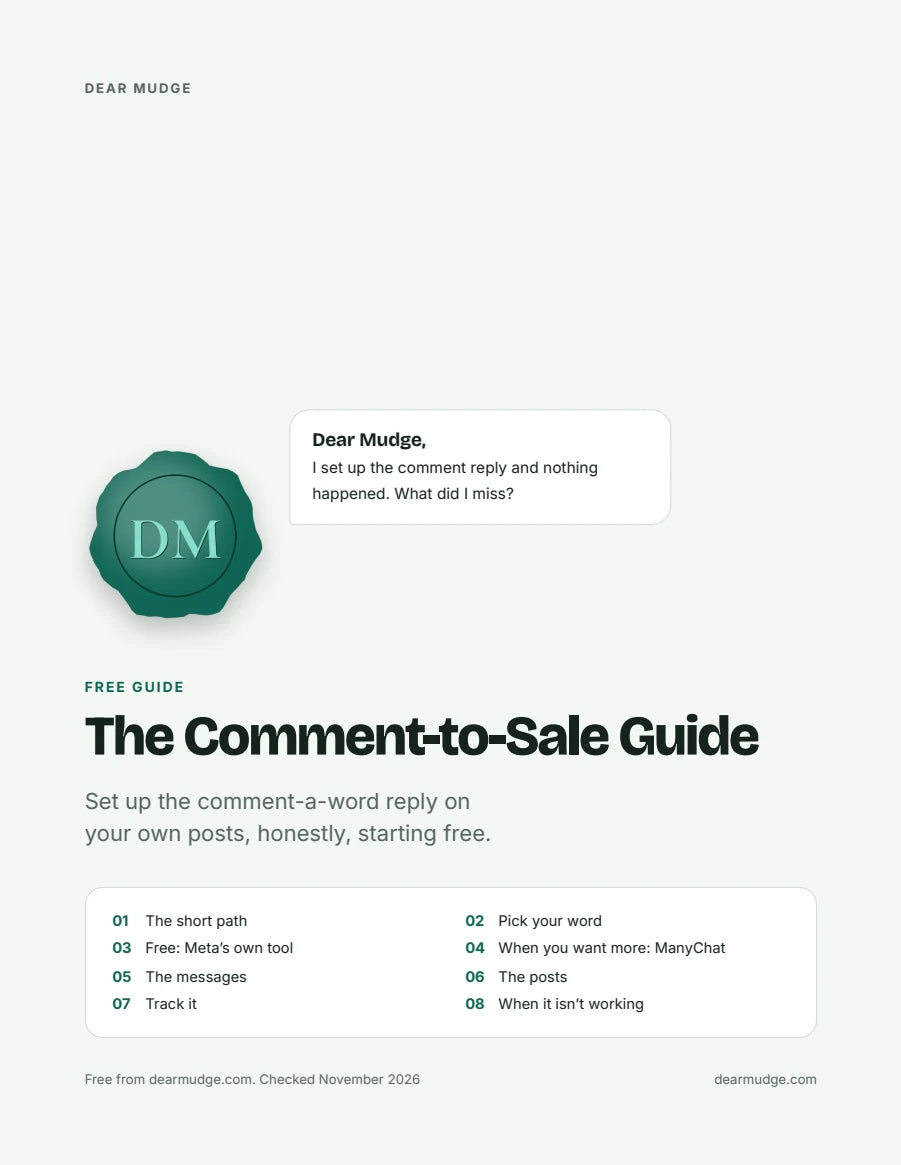
Dear Mudge,
I set up the comment reply and nothing happened. What did I miss?
Usually one of the things below. Work down the list.
Start a normal Claude chat and say what happened, like “I set up a comment to message reply in Meta Business Suite. I commented PLAN from a second account and nothing came.” Ask it to go through the list below with you, one question at a time. A screenshot of your screen helps.
Nothing happens at all
- Is it switched on? In Meta Business Suite, check the toggle under Status. In ManyChat, the automation must be live and, for Facebook, “be sure to turn on the Facebook comments trigger”.
- Give it a few minutes. Meta says a new automation “may take a few minutes to appear”.
- Did you comment as your page? ManyChat says “comments made on behalf of your Facebook page will not activate the auto‑response.” Test from a second account.
- Was the comment there first? ManyChat “cannot retrospectively recognize or respond to comments that were made before the trigger was set up.” Comment again from a new account.
- Is Meta Business Agent on? It pauses Meta’s automations.
It worked once, then stopped
- Same person, same post. Only a person’s first comment on a post starts it. ManyChat says “the trigger can be tested only once per user.” Test with another account, or on a new post.
Meta’s tool ignores the word
- Capitals. Meta says keyword automations are case‑sensitive and must “match exactly”. Add the word in capitals and in small letters.
- Word or hashtag. Meta’s pages disagree. If the plain word doesn’t work, try it as a hashtag, like #PLAN, and test again.
A post isn’t in ManyChat’s list
- Scheduled in Business Suite. ManyChat says “Posts scheduled through Meta Business Suite currently do not appear in the list of available posts within Manychat.”
- The wrong kind of post. Facebook Event, Offer and Job posts, reposts, groups and personal profiles don’t work.
- Photos added from the page. ManyChat asks that photos and videos be “directly uploaded from your device when creating a post.”
- Country or age limits on your page. ManyChat says to remove them for the trigger to work.
- An Instagram ad that isn’t on your grid. ManyChat says a post “created purely as an ad in Ads Manager” can’t be picked if it isn’t on your profile.
The link never comes, or replies look like spam
- The button opens a website. That doesn’t count as a tap that opens the conversation, so the second message never sends. Change it to a normal button.
- Public replies too short or all the same. Use several, change them now and then, and skip emoji‑only ones.
Lots of comments, few sales
This one isn’t a setting. Check your numbers (chapter 7):
- Few taps per message? Make the first message plainer: what it is, the price, one button.
- Taps but few sales? Look at the page: is the price clear, is it easy to buy on a phone, does it show what’s inside?
- Comments from people who aren’t your buyers? Make the post more about who it’s for.
- Test from a second account, once per account per post.
- Check it’s switched on, and give it a few minutes.
- Comments without sales is about the message or the page, not the tool.